How to Access the Activity Log
1. Open Reports
In the left pane, click the Report icon.
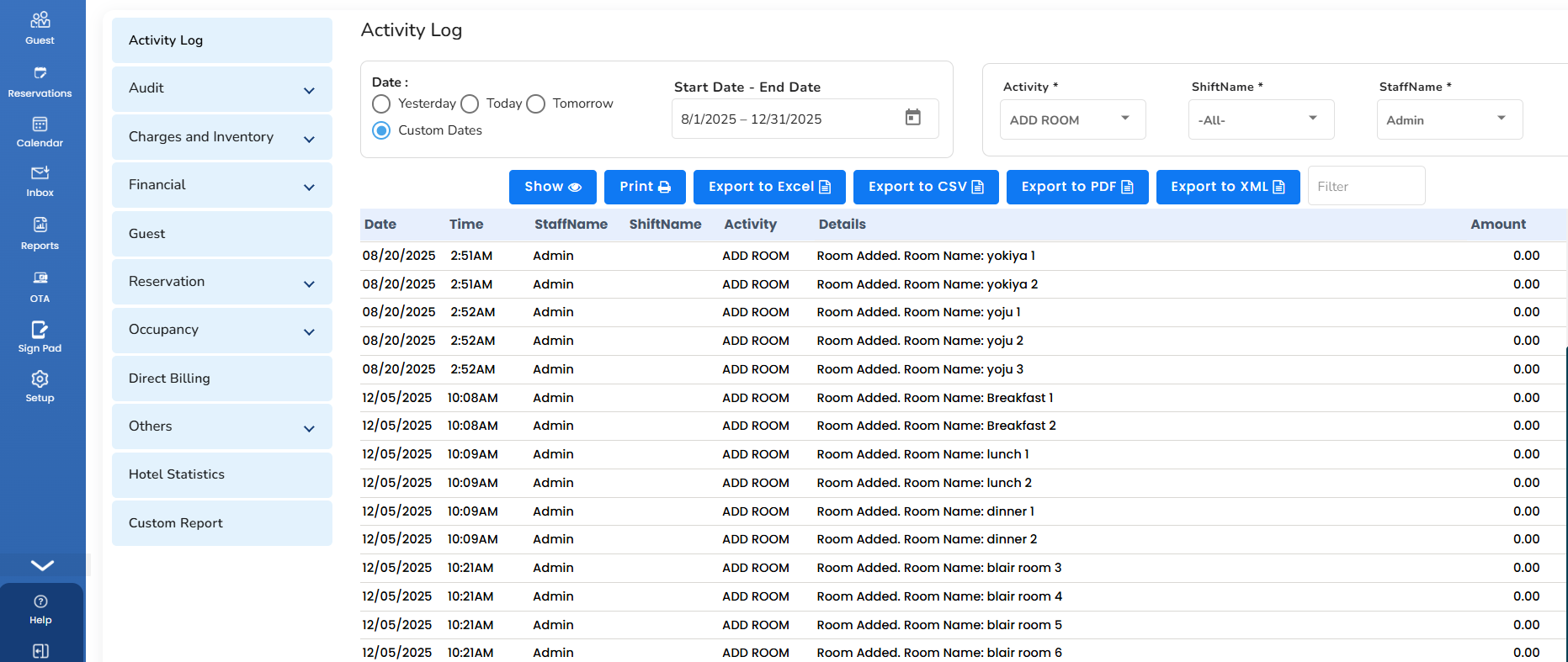
2. Select Activity Log
Choose Activity Log from the available report options.
3. Apply Filters
Activity: Use this dropdown to filter activities such as logins, reservation creation or modifications, and payment or charge additions or modifications.
Shift Name: Use this filter to review activities performed during a specific shift.
Staff Name: Use this filter to review the activities performed by a particular staff member.
4. Combine Filters to Generate a Specific Report
You can combine multiple filters to narrow down the results and find the information you need.
Example: To review reservation modifications made by a specific staff member during a particular time period, select the relevant activity, staff name, and date range filters.
Was this article helpful?
That’s Great!
Thank you for your feedback
Sorry! We couldn't be helpful
Thank you for your feedback
Feedback sent
We appreciate your effort and will try to fix the article